You’ll discover how to establish a direct connection between your iPad and Google Contacts using the CardDAV protocol, eliminating the need for iTunes or manual imports.
Learn the exact server settings, account configuration steps, and advanced tips to ensure your contact information stays synchronized across all your devices automatically.
Whether you’re a business professional or personal user, mastering CardDAV sync will save you time and keep your contacts consistently updated everywhere.
Looking to sync Google Contacts on your iPad with CardDAV for seamless contact management?
This comprehensive guide walks you through the complete CardDAV setup process, from initial configuration to troubleshooting common sync issues.
Why Sync Google Contacts to an iPad with CardDAV?
Syncing Google Contacts to iPad with CardDAV provides a seamless, automatic contact management solution.
CardDAV is an open Internet standard protocol designed specifically for contact synchronization across multiple devices and platforms.
Unlike manual contact imports or iTunes sync methods, CardDAV maintains a live, two-way connection between your iPad and Google Contacts.
When you add, edit, or delete a contact on your iPad, the change automatically reflects in your Google Contacts account within seconds.
Similarly, any modifications made through Gmail or Google Contacts on your computer sync instantly to your iPad.
This real-time synchronization ensures your contact database remains consistent across all your Apple iOS devices, Android phones, and web browsers.
Google Contacts is a powerful contact management tool integrated with Gmail, Google Docs, Google Calendar, and other Google Workspace applications.
By establishing CardDAV sync, you can send emails, schedule appointments, and share documents using unified contact information across different platforms.
Benefits of CardDAV Protocol for iPad Contact Sync
CardDAV offers numerous advantages over traditional contact sync methods like Exchange ActiveSync or IMAP-based solutions.
The protocol supports SSL encryption, ensuring your contact data remains secure during transmission between your iPad and Google servers.
CardDAV is compatible with iOS 5.0 and above, making it accessible for most iPad users regardless of device age.
This method eliminates dependency on third-party contact sync apps that may require subscriptions or contain privacy concerns.
CardDAV also syncs more contact fields compared to basic iTunes sync, including custom labels, multiple email addresses, and detailed address information.
Step-by-Step Guide to Sync Google Contacts to iPad with CardDAV
Are you using an iPad? You can easily sync your Google Contacts without using iTunes, using CardDAV.
Using CardDAV, an Internet open standard, you will be able to edit, add, and remove contacts from iPad and keep them in sync all over the world.
You can use the iOS Contacts app to sync your Google contacts, which was earlier done by IMAP.
You can sync Google Contacts with iPad without using iTunes by following these steps.
Step 1: Access iPad Settings and Navigate to Accounts
Step 1: Open the Settings on your iPad and select Mail, Contacts, and Calendars. From the Add Account, select the Others option.
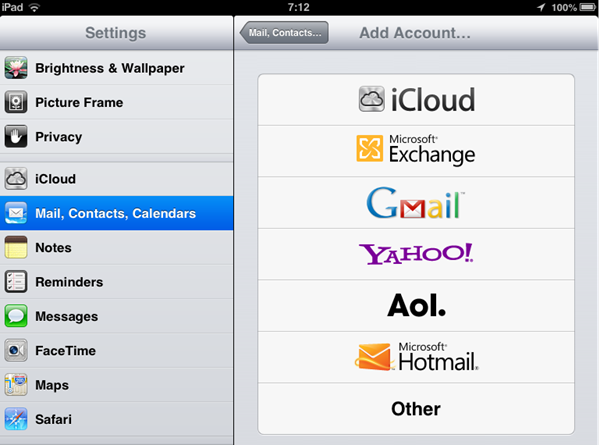
On newer iPad models running iOS 11.0.2 or later versions, you may need to navigate through Settings > Accounts & Passwords instead of Mail, Contacts, and Calendars.
The exact menu structure varies slightly depending on your iPadOS version, but the core functionality remains the same across all supported versions.
Look for the “Accounts” or “Passwords & Accounts” option in your iPad Settings to begin adding your Google account.
Step 2: Select CardDAV Account Type
Step 2: Add your CardDAV account in the next screen.
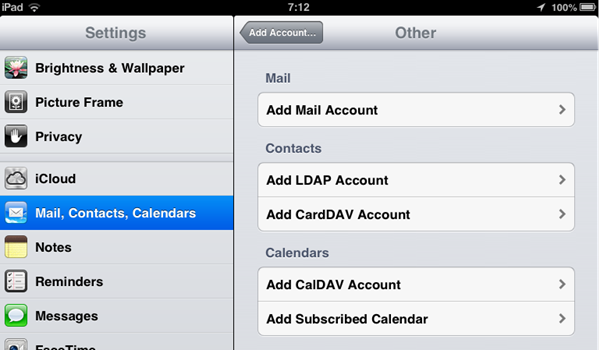
After tapping “Other” from the account selection screen, you’ll see multiple options, including Add Mail Account, Add LDAP Account, and Add CardDAV Account.
Select “Add CardDAV Account” under the Contacts section to proceed with Google Contacts synchronization setup.
CardDAV is specifically designed for contact syncing, unlike CalDAV, which handles calendar synchronization.
Step 3: Configure Google CardDAV Server Settings
Step 3: Now enter the following details in the pop-up window
- Server: Enter “google.com.”
- User Name: Enter your full Google Account or Google Apps email address.
- Password: Your Google Account or Google Apps password.
- Description: Enter a description of the account.
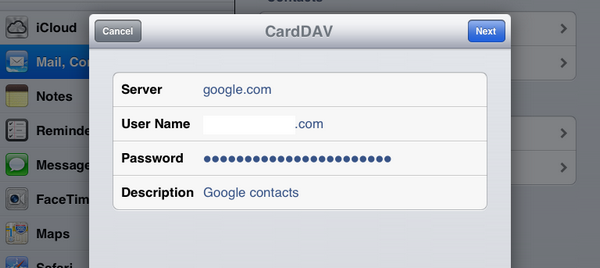
The server field should contain only “google.com” without any additional protocols or paths.
Google’s CardDAV implementation automatically handles the correct server endpoint configuration when you provide this domain.
If you have Google 2-Step Verification enabled on your account, you’ll need to generate an app-specific password instead of using your regular Google password.
Visit your Google Account security settings to create an app password specifically for iPad CardDAV access.
The description field helps you identify this account if you manage multiple contact sources on your iPad.
Consider using descriptive names like “Google Contacts Work” or “Personal Gmail Contacts” for easy recognition.
Step 4: Verify and Enable Contact Synchronization
Step 4: Click next, and your account will be added in Mail, Contacts, and Calendars. You can make this Google account your default account for Contacts.
Once the verification completes successfully, your iPad will begin syncing contacts from your Google account immediately.
Open the Contacts app on your iPad to verify that your Google contacts are appearing correctly.
The initial sync duration depends on the total number of contacts in your Google account.
Accounts with thousands of contacts may take several minutes to complete the first synchronization.
You can also change the sort order and display order using the options in iPad.
Navigate to Settings > Contacts to customize how contact names display (First, Last, or Last, First) and how they’re sorted alphabetically.
Setting Google as Default Contacts Account
To ensure all new contacts created on your iPad are automatically saved to Google Contacts, set Google as your default contact’s account.
Go to Settings > Contacts > Default Account and select your Google account from the available options.
This setting is particularly important if you have multiple contact accounts configured, such as iCloud, Exchange, or other CardDAV sources.
Without setting a default account, iOS may prompt you to choose a destination each time you create a new contact.
CardDAV vs. iTunes: Which Method is Better for iPad Contact Sync?
Alternatively, if you want to use iTunes to sync your Google contacts, here’s the procedure by Google.
As you can see, the process used by Google to sync contacts on your iPad with iTunes has the following disadvantage.
Only some of the information, like people’s names and job titles, company names, email and postal addresses, etc., can be synced with your iPad device.
While using CardDAV, though I’m not sure, it will perhaps sync all your contact information in Google Contacts.
Please let me know in the comments your experience in syncing Google Contacts with iPad without using iTunes and using iTunes.
Key Advantages of CardDAV Over iTunes Sync
CardDAV provides automatic wireless synchronization without requiring physical connection to a computer running iTunes.
iTunes sync requires manual cable connection and synchronization steps each time you want to update contacts.
With CardDAV, contact changes propagate immediately across all connected devices without user intervention.
iTunesSync only transfers data when you explicitly initiate a sync session through your computer.
CardDAV works seamlessly with Google Workspace accounts, personal Gmail accounts, and Google Apps for Education.
iTunes contact sync may have field mapping limitations that prevent certain contact properties from transferring correctly.
Troubleshooting Common CardDAV Sync Issues on iPad
CardDAV Account Verification Failed Error
If you receive a “Cannot Connect Using SSL” or “Account Verification Failed” error, verify that you’ve entered the correct server information.
Double-check that the server field contains exactly “google.com” without https:// or www prefixes.
Ensure your username includes the complete email address, not just the username portion before the @ symbol.
If you have 2-Step Verification enabled, regular passwords won’t work—generate an app-specific password from your Google Account security settings.
Contacts Not Syncing After Initial Setup
Navigate to Settings > Contacts > Accounts and select your Google CardDAV account.
Verify that the Contacts toggle switch is enabled (green).
Examine the Advanced Settings within the account configuration to ensure “Use SSL” is turned ON.
If changes still aren’t syncing, try toggling the Contacts switch OFF, waiting 10 seconds, then turning it back ON to force a fresh sync.
Missing Contacts or Incomplete Sync
Some users experience partial contact syncing, where only a subset of Google contacts appear on their iPad.
This often occurs when contacts exist in multiple Google Contacts groups or labels.
Log into Google Contacts via web browser and verify if the missing contacts are in specific groups or directories.
Ensure contacts are saved in “My Contacts” rather than “Other Contacts,” as CardDAV primarily syncs the main contacts list.
Password Incorrect Popup Appearing Repeatedly
If iOS repeatedly prompts for your CardDAV password even after correct entry, delete the account entirely and recreate it.
This issue frequently occurs after changing your Google password without updating the saved credentials on iPad.
Always regenerate app-specific passwords if you’ve recently modified your Google Account security settings.
Advanced Tips for Optimal iPad Google Contacts Sync
Managing Multiple Google Accounts with CardDAV
iPad supports adding multiple CardDAV accounts simultaneously, allowing you to sync contacts from different Google accounts.
This is particularly useful for users who maintain separate personal and work Google accounts.
Each account can be configured independently with its own CardDAV settings and sync preferences.
Contacts from different accounts remain separate in the Contacts app, with account labels indicating their source.
Understanding Contact Groups and Labels
Google Contacts groups and labels sync to iPad through CardDAV, appearing as contact lists within the Contacts app.
You can view contacts by group using the Groups button in the Contacts app’s upper-left corner.
Creating new groups on iPad requires editing contacts through the Google Contacts web interface, as iOS doesn’t support group creation natively.
Sync Frequency and Battery Impact
CardDAV sync operates continuously in the background using push notifications for optimal responsiveness.
The battery impact is minimal because sync only activates when contact data changes occur.
Unlike periodic polling methods that check for updates at fixed intervals, CardDAV receives instant notifications from Google servers.
This efficient protocol design ensures your contacts stay current without significant power consumption.
Frequently Asked Questions (FAQ) About Syncing Google Contacts to iPad with CardDAV
1. Does CardDAV sync work with all iPadOS versions?
CardDAV contact synchronization is available on iOS 5.0 and all subsequent versions, including the latest iPadOS releases.
Apple’s native Contacts app provides built-in CardDAV support without requiring third-party applications.
The setup process remains fundamentally similar across iOS versions, though menu locations may vary slightly between older and newer iPadOS releases.
The iPad mini, iPad Air, iPad Pro, and standard iPad models all support CardDAV contact sync with Google.
2. Can I sync Google Contacts to multiple iOS devices using the same CardDAV account?
Yes, you can configure the same Google CardDAV account on unlimited iOS devices, including iPhone, iPad, and iPod touch.
All devices will maintain synchronized contact information in real-time through the cloud.
Changes made on any device propagate automatically to all other connected devices within seconds.
This unified contact management approach ensures consistency across your entire Apple ecosystem.
3. What happens if I delete a contact on my iPad?
When you delete a contact from your iPad’s Contacts app, CardDAV sync removes that contact from your Google Contacts account permanently.
The deletion syncs across all devices connected to that Google account.
Google provides a 30-day trash recovery period where deleted contacts can be restored through the Google Contacts web interface.
Be cautious when deleting contacts, as this action extends beyond your local device.
4. Is CardDAV sync secure for sensitive business contacts?
CardDAV connections use SSL/TLS encryption to protect contact data during transmission between your iPad and Google servers.
Google implements enterprise-grade security measures, including encrypted storage and secure authentication protocols.
For additional security, enable Google 2-Step Verification and use app-specific passwords for CardDAV access.
Organizations using Google Workspace can enforce additional security policies and access controls for contact data.
5. Will CardDAV sync work without an internet connection?
CardDAV requires an active internet connection (Wi-Fi or cellular) to synchronize contact changes between your iPad and Google servers.
However, all previously synced contacts remain accessible offline in your iPad’s Contacts app.
You can view, search, and use contacts for calling or messaging without internet connectivity.
Contact modifications made offline will queue and sync automatically once the internet connection is restored.
Conclusion: Mastering iPad Google Contacts Sync with CardDAV
Syncing Google Contacts to iPad with CardDAV establishes a reliable, automatic contact management system that eliminates manual update hassles.
This open standard protocol provides superior functionality compared to iTunes sync or third-party contact apps.
By following the step-by-step configuration process outlined in this guide, you can achieve seamless two-way contact synchronization.
The CardDAV method ensures your contact database remains consistent across iOS devices, Android phones, and web browsers.
Whether you’re managing personal contacts or coordinating business communications, CardDAV delivers the reliability and convenience modern users require.


Using CardDAV, a good application to sync contacts from Google to iPad. It helps inter OS transfer-ability. People using both iPhone and Android can take advantage of this. Thanks for the info.
This is useful information to sync google contacts with iPad. It provides a way to sync from Google to Apple.