Mac OS X Mountain Lion 10.8: Complete Review & Guide
Mac OS X Mountain Lion 10.8 represents a significant milestone in Apple’s operating system evolution, combining cloud-centric features with enhanced performance and battery optimization.
This comprehensive review explores Mountain Lion 10.8.2’s groundbreaking features, system requirements, installation process, and real-world performance improvements.
Learn how this OS revolutionized Mac computing with iCloud integration, Notification Center, the Messages app, and Power Nap technology.
Discover battery life improvements, compatibility details, and whether upgrading from Snow Leopard or Lion is worth it.
Whether you’re a Mac enthusiast or considering an upgrade, this guide provides everything you need to know about OS X Mountain Lion.
Introduction: The Evolution of Mac OS X Mountain Lion
Mac OS X Mountain Lion, officially designated as version 10.8, launched on July 25, 2012, marking Apple’s ninth major release of its desktop operating system.
This release introduced a cloud-centered approach that fundamentally changed how Mac users interact with their devices and data.
On September 19th, 2012, Apple released Mountain Lion 10.8.2, side-by-side with the final release of iOS 6. In 10.8.1 Mac users had complaints about decreased battery life, which Apple did not address at that time.
Coming to 10.8.2, the same problem arose, and users complained about significant reduction in battery life when they upgraded to Mountain Lion.
The operating system brought over 200 new features, with many inspired by iOS, creating a more seamless ecosystem between Mac computers and iOS devices.
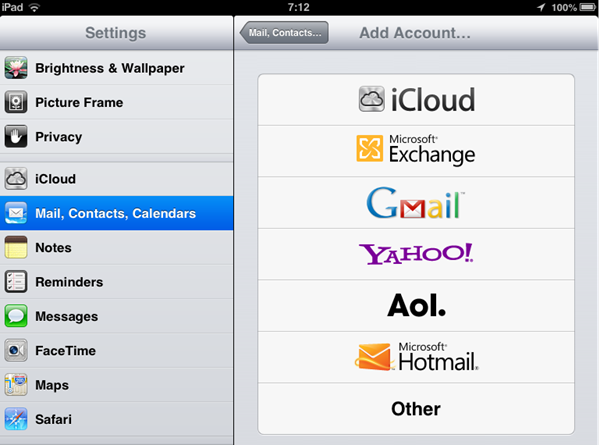
Mountain Lion emphasized integration with iCloud, Apple’s cloud storage and computing service, enabling automatic synchronization of documents, photos, contacts, and calendars across all Apple devices.
The new release of OS X is a cloud-centered operating system and has come out with different features that sync with iCloud.
Initially, only Twitter integration was present in the new release of Mountain Lion, but later Facebook integration was also added.
This strategic direction represented Apple’s vision for the future of computing, where device boundaries blur and data seamlessly flows between desktop and mobile platforms.
Mac OS X Mountain Lion System Requirements and Compatibility
Minimum Hardware Requirements for Mountain Lion
The official system requirements for OS X 10.8 Mountain Lion include specific hardware and software prerequisites that determine compatibility.
- Mac computers need at least 2 GB of RAM to run Mountain Lion smoothly, though 4 GB or more is recommended for optimal performance.
- Available storage space of 8 GB is required for installation, ensuring adequate room for the operating system and essential files.
- The system requires OS X Snow Leopard 10.6.8 or Lion 10.7 as a prerequisite for upgrading to Mountain Lion.
- Intel processors are mandatory, specifically Intel Core 2 Duo, Core i3, Core i5, Core i7, or Xeon processors.
PowerPC Macs and early Intel Macs with Core Duo processors are not compatible with Mountain Lion due to 64-bit EFI requirements.
Compatible Mac Models for OS X 10.8
iMac models from mid-2007 or later support Mountain Lion installation and operation.
- MacBook computers require the aluminum unibody design from late 2008 or newer to run the operating system.
- MacBook Air compatibility begins with late 2008 models and extends to all subsequent releases. MacBook Pro models from mid-2007 or later can install and run Mountain Lion without issues.
- Mac Mini systems from early 2009 or newer are fully compatible with the operating system.
- Mac Pro workstations from early 2008 or later support Mountain Lion, though some 2006 models can run it with unofficial modifications.
Xserve models are not officially supported by Mountain Lion, marking the end of Apple’s server hardware line.
Key Features of Mountain Lion 10.8.2
The significant features of the latest OS from Mac are numerous and transformative for the Mac user experience.
- The addition of shared lists in Reminders allows collaborative task management across Apple devices.
- Restore previous sessions in Safari enables users to pick up where they left off after browser crashes or restarts.
- Messages can now receive iMessages, bringing iOS-style messaging to the Mac desktop.
- FaceTime calls can now be made with your Apple ID, expanding video communication options.
- Game Center, providing friend’s suggestions from Facebook, integrates social gaming features. Game Center can now challenge your friends to a game, fostering competitive multiplayer experiences.
Notification Center and iOS Integration
Notification Center brings iOS-style alerts to the Mac desktop, displaying notifications from Mail, Calendar, Messages, and third-party applications.
The banner-style notifications appear in the upper-right corner of the screen, providing unobtrusive alerts without interrupting workflow.
Users can swipe with two fingers from the right edge of the trackpad to reveal the full Notification Center panel.
Customization options allow users to choose which apps can send notifications and how they appear.
Do Not Disturb mode silences notifications during specified hours or when the display is sleeping.
iCloud Integration and Document Sync
iCloud integration forms the backbone of Mountain Lion’s cloud-centric design philosophy.
Documents automatically sync between Macs, iPads, and iPhones when apps support iCloud storage.
Contacts, calendar events, reminders, and notes synchronize seamlessly across all devices.
Photo Stream pushes recently taken photos to all connected devices within seconds.
iCloud email, contacts, and calendar can be set up during installation or added later through System Preferences.
Power Nap: Revolutionary Background Updates
10.8.2 technically brings Power Nap support to the late 2010 MacBook Air.
In order to use the full functionality of Power Nap, MacBook Air users need to download a required SMC update, which is not available for the 2010 models at this time.
The Power Nap feature lets some compatible Mac computers stay up-to-date even while the system is sleeping.
To use Power Nap, your Mac must use flash memory (hard disks and SSDs don’t work).
The type of information updated depends on whether your computer is connected to a power source or running on a battery.
Power Nap on Battery Power
If the computer is running on battery, Power Nap can do the following things.
Checks for new email in Mail automatically without waking the display.
Updates events in the calendar to ensure appointments remain current. Updates other iCloud events, including contacts, reminders, and notes.
These background operations occur silently, preserving battery life while maintaining data currency.
Power Nap While Plugged In
If it’s connected to a power adapter, Power Nap can also back up your computer using Time Machine.
Software updates download automatically in the background, ready for installation when convenient.
Spotlight index updates occur during sleep, ensuring fast search results when awake.
Mail downloads new messages and attachments, making them instantly available upon waking.
Compatible Devices for Power Nap
MacBook Air (Late 2010, Mid 2011, Mid 2012) and MacBook Pro (Retina, Mid 2012) are compatible with Power Nap and Mountain Lion 10.8.2.
These models feature the flash storage and power management capabilities necessary for Power Nap functionality.
Older MacBook models and iMacs do not support Power Nap due to hardware limitations.
Mountain Lion 10.8.2 Battery Life Improvements
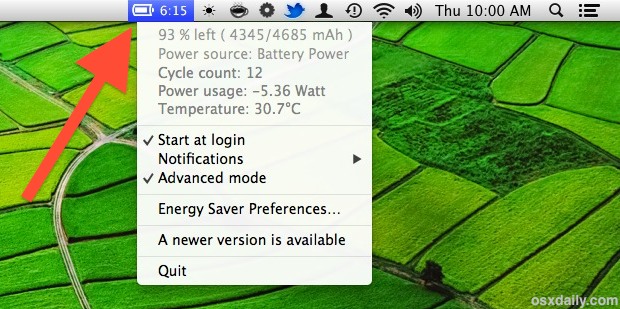
According to osxdaily, the following observations were made regarding battery life with Macs using the Mountain Lion 10.8.2 update.
Dramatic improvements to battery life on three different MacBook Airs (2010, 2011, and 2012 models), each jumping by at least 2 hours to an average of 6 hours under normal use.
Portable Macs running OS X 10.8.2 appear to run at lower temperatures and are noticeably cooler to the touch, perhaps suggesting the original battery life issue was related to power management or an errant background process.
Real-World Battery Performance Tests
To our astonishment, the release notes of 10.8.2 make no remarks on battery improvements.
You can install the OS X 10.8.2 update if you are using a MacBook, MacBook Pro, or MacBook Air running Mountain Lion 10.8 or 10.8.1 through Apple Menu > Software Update.
MacObserver has found that 10.8.2 significantly improves battery life on both HDD- and SSD-based MacBooks and brings it back up to the levels seen on OS X Lion 10.7.4.
Users reported an average battery life increase of 2-3 hours after updating from 10.8.1 to 10.8.2.
The improvements were most noticeable during web browsing, video playback, and general productivity tasks.
Temperature Management and Thermal Performance
Lower operating temperatures indicate improved power management and reduced CPU strain.
Fans run less frequently and at lower speeds, contributing to quieter operation.
Reduced heat output extends component longevity and improves user comfort during extended sessions.
Apple’s optimization of background processes eliminated unnecessary CPU cycles that drained battery in earlier versions.
Installation and Upgrade Process for Mountain Lion
Downloading Mountain Lion from Mac App Store
Mountain Lion was the first Mac OS X release distributed exclusively through the Mac App Store, eliminating physical media.
The download size is approximately 4.45 GB, requiring a stable internet connection and sufficient time for completion.
Pricing was set at $19.99 USD, making it one of the most affordable Mac OS X upgrades in history.
Users must have an Apple ID and be running Snow Leopard 10.6.8 or Lion 10.7 to purchase and download Mountain Lion.
Creating a Bootable Mountain Lion Installer
Advanced users can create a bootable USB installer using the downloaded Mountain Lion application.
This method allows clean installations without requiring an existing OS X installation.
A USB drive with at least 8 GB capacity is necessary for creating a bootable installer.
Terminal commands or third-party utilities can facilitate the creation process for those comfortable with advanced procedures.
Performance Comparison: Mountain Lion vs Lion vs Snow Leopard
Speed and Responsiveness Improvements
Mountain Lion delivers noticeably faster application launch times compared to Lion.
Spotlight indexing completes more quickly, and searches return results faster than previous versions.
Safari 6, included with Mountain Lion, provides improved JavaScript performance and page rendering speed.
Overall system responsiveness approaches the legendary speed of Snow Leopard while maintaining modern features.
Memory Management and Resource Utilization
Improved memory compression reduces RAM usage for inactive applications.
Background processes consume fewer system resources, leaving more power for foreground applications.
Timer coalescing groups low-priority background tasks to reduce CPU wake events.
These optimizations contribute to both improved performance and extended battery life.
Frequently Asked Questions About Mac OS X Mountain Lion
1. Is Mac OS X Mountain Lion still supported by Apple?
Mountain Lion reached end-of-life status in 2015, meaning Apple no longer provides security updates or technical support.
The final version, OS X 10.8.5, was released in September 2013 with subsequent security updates through 2015.
Users running Mountain Lion should consider upgrading to a supported macOS version for continued security protection.
Many modern applications no longer support Mountain Lion due to its age and deprecated technologies.
2. Can I install Mountain Lion on unsupported Mac hardware?
Technically savvy users have created unofficial methods to install Mountain Lion on incompatible Macs.
These modifications bypass Apple’s hardware whitelist checks during installation.
Unsupported installations may experience driver issues, reduced performance, or missing features. Apple does not recommend or support installing Mountain Lion on incompatible hardware configurations.
3. What are the major differences between Mountain Lion and Mavericks?
OS X Mavericks (10.9) succeeded Mountain Lion and introduced significant enhancements, including improved multi-display support.
Mavericks featured aggressive power-saving technologies called App Nap and Compressed Memory.
iCloud Keychain for password synchronization debuted in Mavericks, improving security and convenience.
Maps and iBooks applications were added to the Mac for the first time in Mavericks.
4. How do I upgrade from Mountain Lion to a newer macOS version?
Compatible Macs can upgrade to El Capitan (10.11) or higher versions through the Mac App Store.
A backup using Time Machine is essential before beginning any major operating system upgrade.
Check Apple’s compatibility requirements to ensure your Mac supports the target macOS version. Upgrade paths from Mountain Lion may require intermediate updates depending on hardware age.
5. Does Mountain Lion support Boot Camp and Windows installation?
Mountain Lion includes Boot Camp 5, which supports Windows 7 and Windows 8 installation.
Windows XP and Vista are supported only for existing Boot Camp installations, not new setups.
Intel-based Macs running Mountain Lion can partition their hard drives to run Windows natively.
Virtualization software like Parallels Desktop and VMware Fusion also works with Mountain Lion for running Windows.
Conclusion: The Legacy of Mac OS X Mountain Lion
Mac OS X Mountain Lion 10.8 represents a pivotal moment in Apple’s desktop operating system evolution.
The release bridged the gap between traditional Mac computing and iOS mobile experiences through thoughtful feature integration.
Mountain Lion’s emphasis on cloud services, social integration, and cross-device synchronization established patterns that continue in modern macOS versions.
While no longer supported, Mountain Lion’s influence persists in contemporary Apple ecosystem design.
For Mac users in 2012 and 2013, Mountain Lion delivered meaningful improvements in battery life, performance, and user experience.
The operating system demonstrated Apple’s commitment to annual updates and incremental refinement.
Users considering vintage Mac hardware should understand Mountain Lion’s limitations while appreciating its historical significance.
For modern Mac users, understanding Mountain Lion provides valuable context for Apple’s operating system evolution and design philosophy.